Download assets
5 min read
Under a finished video, the Assets section holds the materials that went into it. Use them to re-edit or to make a thumbnail.
Step 1
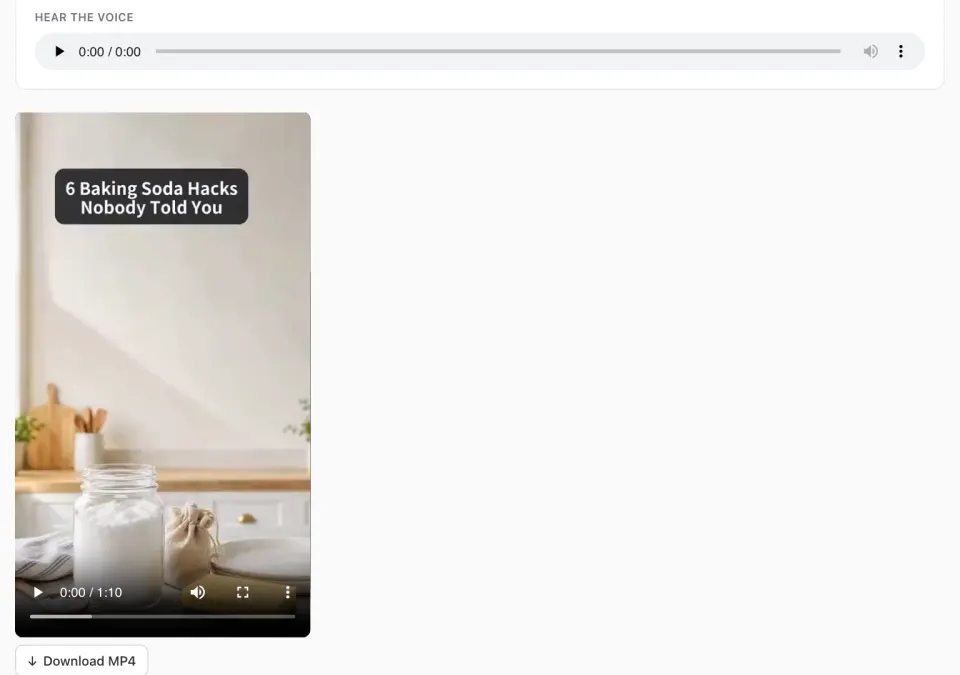
Download the video
When a job is Done, play it on the job page and press "Download MP4". The finished video stays available regardless of the asset window.
Step 2
Open the Assets section
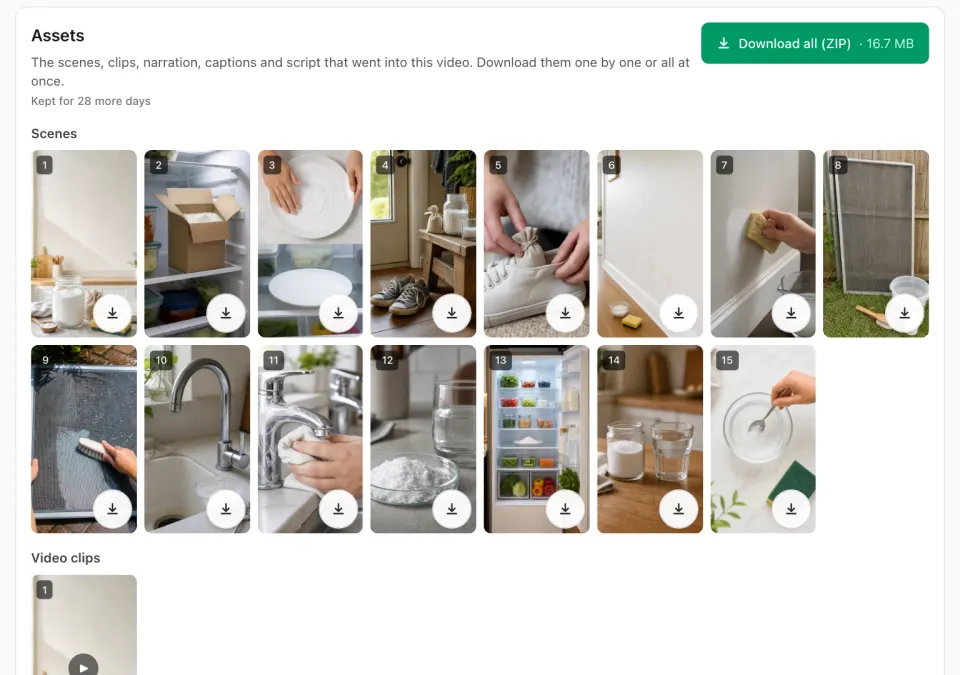
Below the video you will find scene and clip thumbnails, a narration player and file rows for captions (SRT) and the script (text). Each has its own download button.
"Download all (ZIP)" gets everything at once; its size is shown next to it.
Step 3
What is inside
Scene images (JPEG), video clips such as the moving opening scene (MP4), narration without music (M4A), captions (SRT) and the script (title and narration lines).
File metadata is removed. No prompts or internal records are included.
Step 4
Kept for 30 days
Assets can be downloaded for 30 days after the video is done and are then deleted automatically. Check "Kept for N more days" and save what you need.
Step 5
How you may use them
You may use outputs for any lawful purpose, including commercial use. Music and voices we supply may be used only within that video (including re-editing it with its assets) and may not be resold or used to make other voices or music.
Your next Short is one topic line away
No installs, no API keys: get an MP4 that has already been reviewed.
Verify your email and get 1 free video every month (Economy quality, with a watermark). After that, videos use credits.
New here? Start with the help center