Make your first video
6 min read
Your first video needs almost no choices. A popular topic and the Auto format are already picked, so check the topic, press Create and your order is in within a minute.
Step 1
Sign up and open the dashboard
Sign up from "Sign in" at the top right. The dashboard opens, and while you have no videos yet it shows a "Welcome!" card.
Press "Make your first video" to go to the create screen.
Step 2
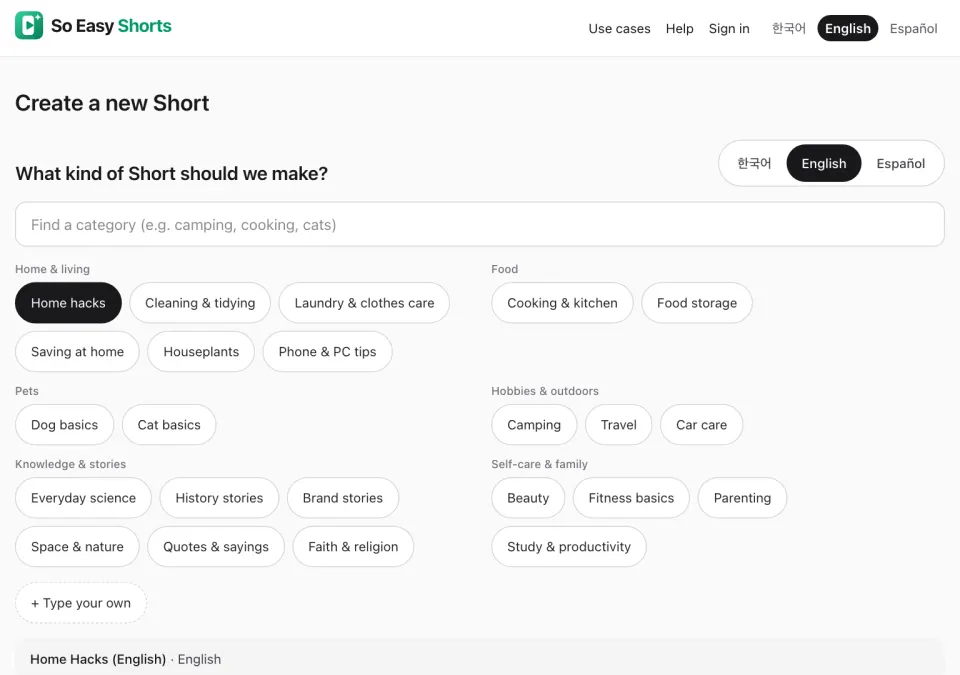
Check the pre-filled choices
Your first order comes with the Home hacks preset for your language, the Auto format and "Make it for me". Keep them or change anything.
With only free credits the tier is set to Economy (other tiers say "Available with a plan"); with a plan, the Recommended tier is selected.
How to make it, tags, voice, quality tier and the extra request sit under "More options".
Step 3
Follow the three-step tour
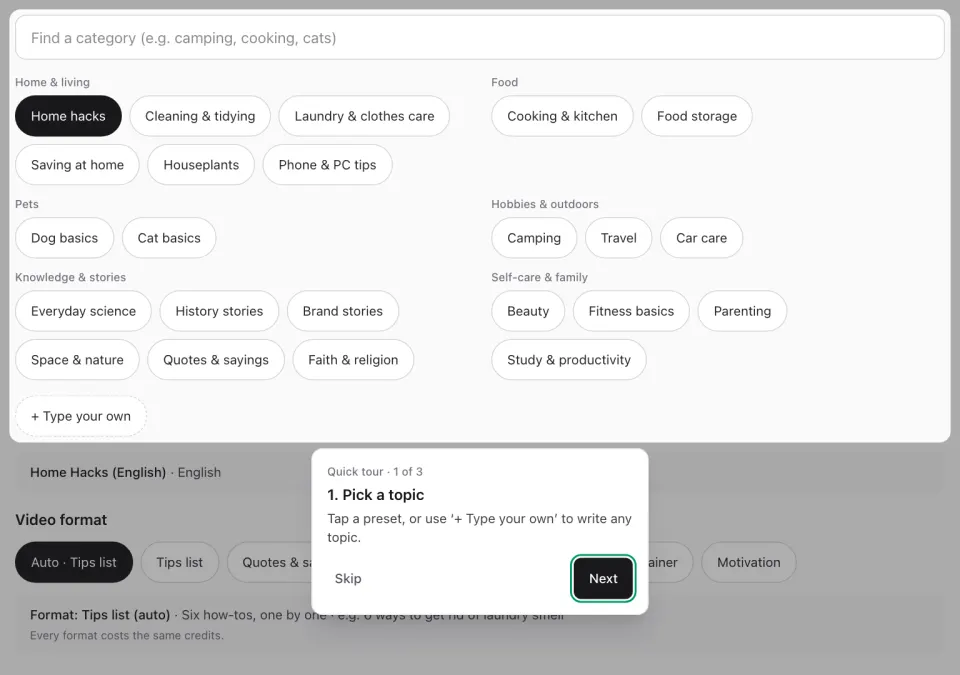
Next to the real controls, a short tour walks you through 1. Pick a topic, 2. Video format and 3. Create. Use Next, Back or Skip; Esc closes it.
Tap a preset or use "+ Type your own" to write a niche like "camping gear care". Leave the topic empty and we pick one that does not repeat your earlier videos.
Step 4
Create for free or subscribe
Accounts with a verified email can make 1 video a month for free without a plan (Economy tier, 7 credits). When the create bar says "Free videos include a watermark", just press Create and the order goes through. Free videos carry a "Made with So Easy Shorts" watermark, and their assets are captions and script only.
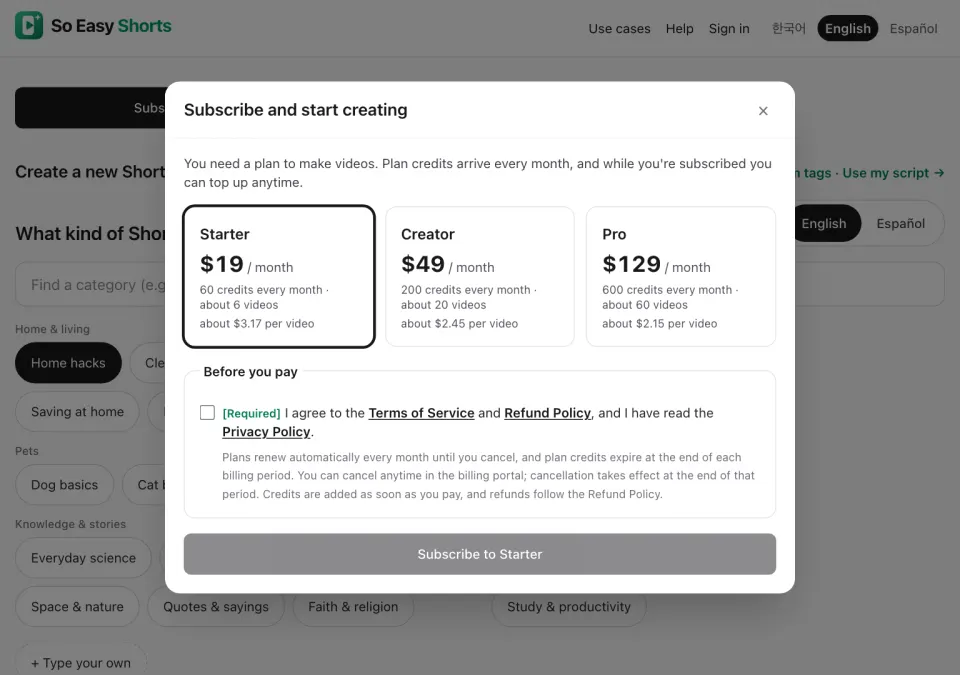
To make videos without a watermark or use other tiers and modes, subscribe. The button shows the credits for this video (about 10 on the Recommended tier); if you don't have enough, a "Subscribe and start creating" window opens. Pick a plan, accept the terms and you go to Stripe checkout.
After paying, a "Payment complete" window opens; "Continue creating" takes you back to the create screen with everything you entered. With a voucher code you can get credits without a plan through "Redeem code" on the dashboard.
Step 5
Wait on the job page
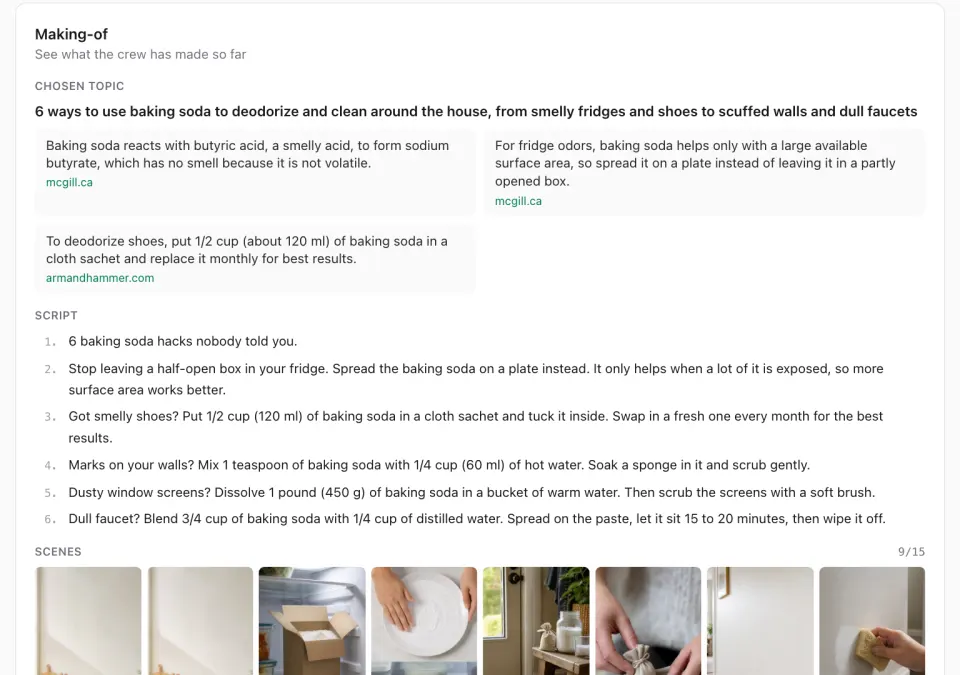
Your first order opens its job page. A line at the top says our crew is finding material, and the making-of notes fill with the topic, facts, script and scenes.
A video usually takes 10–15 minutes. You can close the window; we email you when it is ready.
Step 6
Watch and download
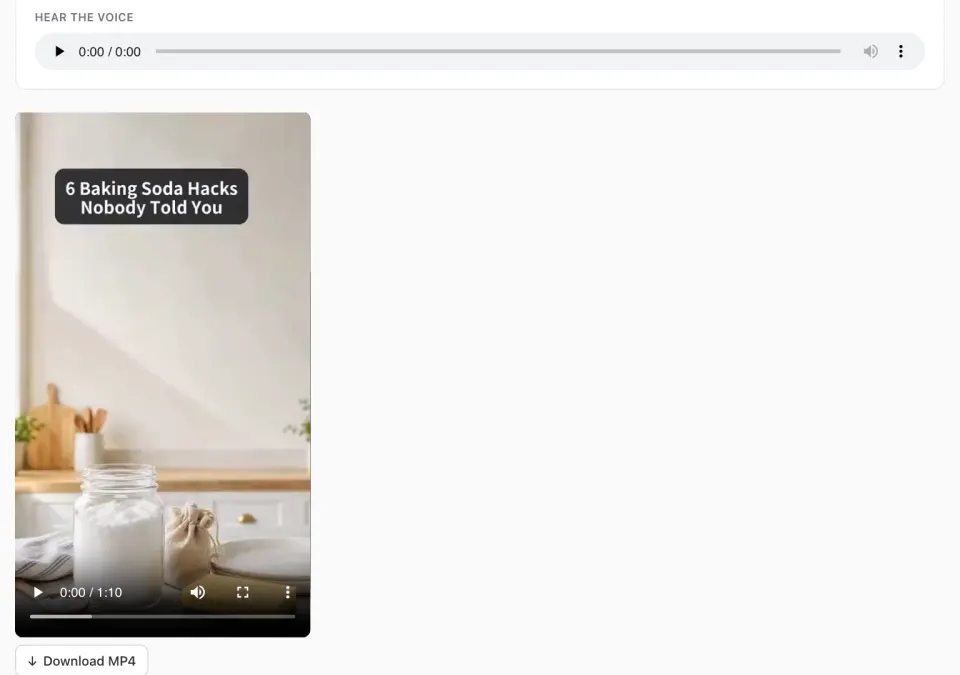
When "Your first video is ready!" appears, play it and press "Download MP4". Always check the video once before you post it.
Then try "Make another on a new topic".
Good to know
- If a video never passes the review, your credits come back automatically.
- Ordering a topic close to a recent one shows a warning. Try a different angle.
Your next Short is one topic line away
No installs, no API keys: get an MP4 that has already been reviewed.
Verify your email and get 1 free video every month (Economy quality, with a watermark). After that, videos use credits.
New here? Start with the help center