While you wait: making-of notes
5 min read
After you order there is nothing left to do. If you are curious, the job page shows what the crew makes as it happens.
Step 1
Read the progress
The top of the job page shows the crew member at work (Scout, Writer, Director, Painter, Cinematographer, Narrator, Editor, Inspector), the step, time elapsed and about how many minutes are left.
A queued job shows "Queued" and starts as soon as its turn comes. Only queued jobs can be canceled with "Cancel and refund".
Step 2
Open the making-of notes
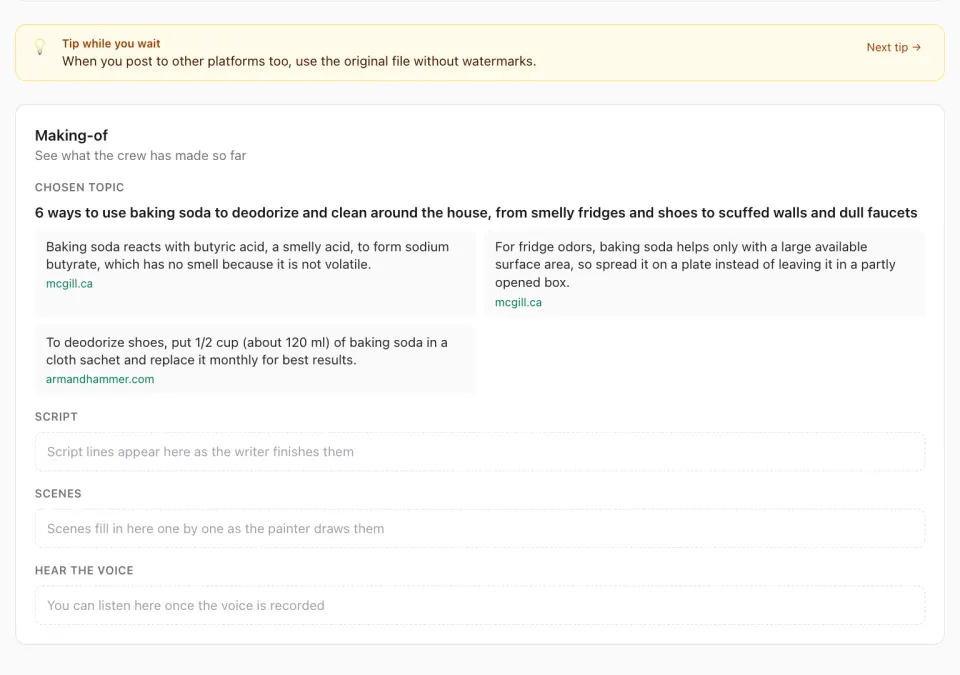
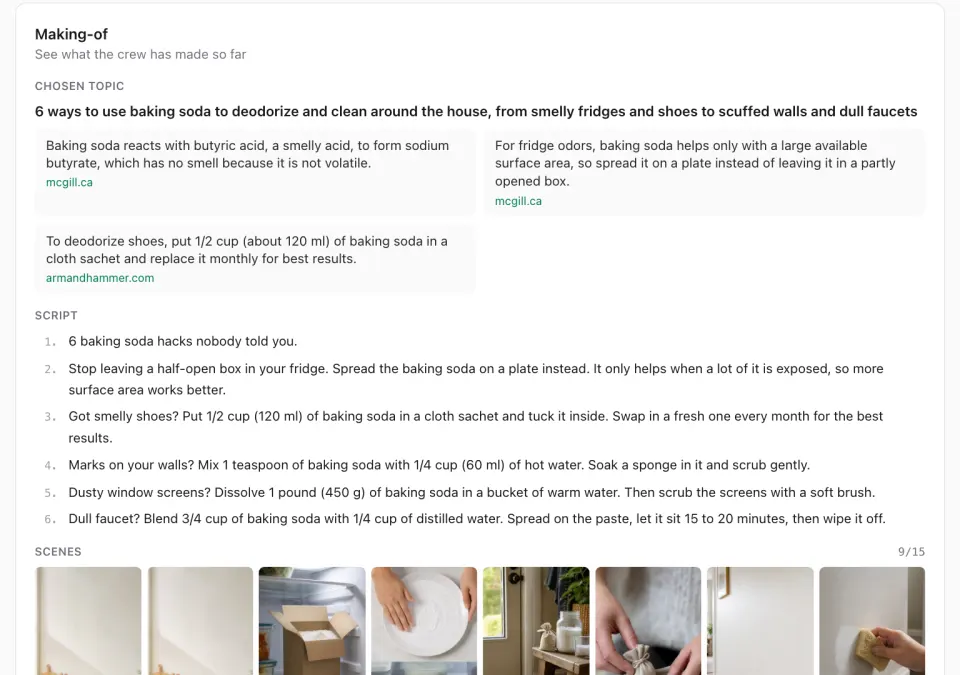
The "Making-of" panel fills in order: chosen topic, checked facts with their source sites, script lines, scenes as they are drawn, the opening scene and a voice preview.
The checked facts and sources are handy for citing sources in your video description.
Step 3
Close the window if you like
We email you when the video is ready or if it stops.
Turn on "Get a browser notification when it's done" to be notified while the tab is open. The tab title also changes to "Done!".
Step 4
Follow several jobs on the dashboard
The dashboard job list shows each job's crew line and status (Queued, In production, Done, Failed and so on). Click a job to open its page.
Step 5
Read tips while you wait
Below the job, tips for running a Shorts channel appear one at a time. Use "Next tip" to flip through them; the upload tips guide collects them too.
Your next Short is one topic line away
No installs, no API keys: get an MP4 that has already been reviewed.
Verify your email and get 1 free video every month (Economy quality, with a watermark). After that, videos use credits.
New here? Start with the help center